Tutorial
Start saving recipes in Pantry
Tutorial
Setting Up the Recipe Import Extension
Save recipes directly from your favourite cooking websites into Pantry without leaving your browser. Setting up the iOS Share Sheet shortcut takes less than a minute:
Step 1: Open the Browser Share Menu
While viewing any recipe webpage in Safari (or Chrome), open the page menu and tap Share.
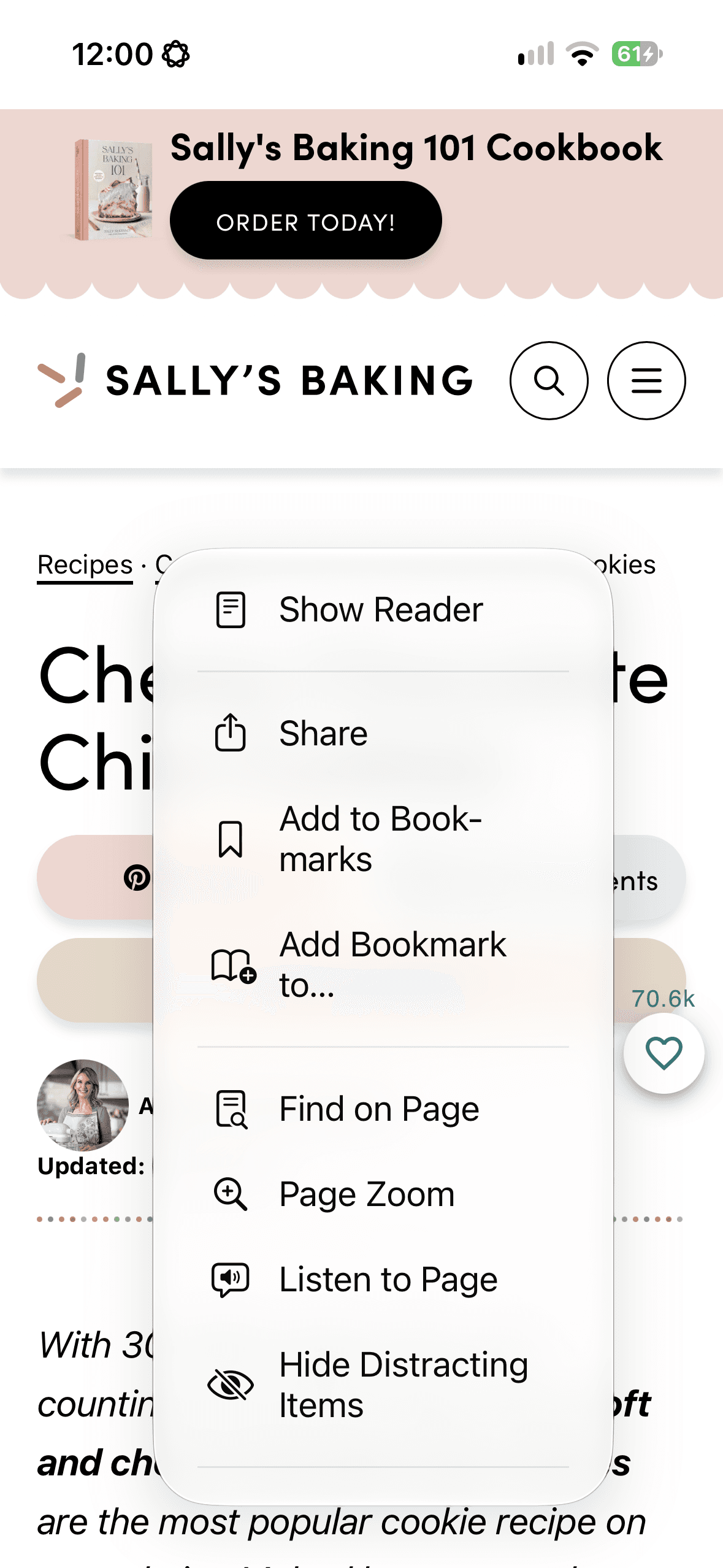
Step 2: Customise Your Share Sheet Apps
In the iOS Share Sheet, swipe all the way to the right across the row of app icons and tap More (•••).
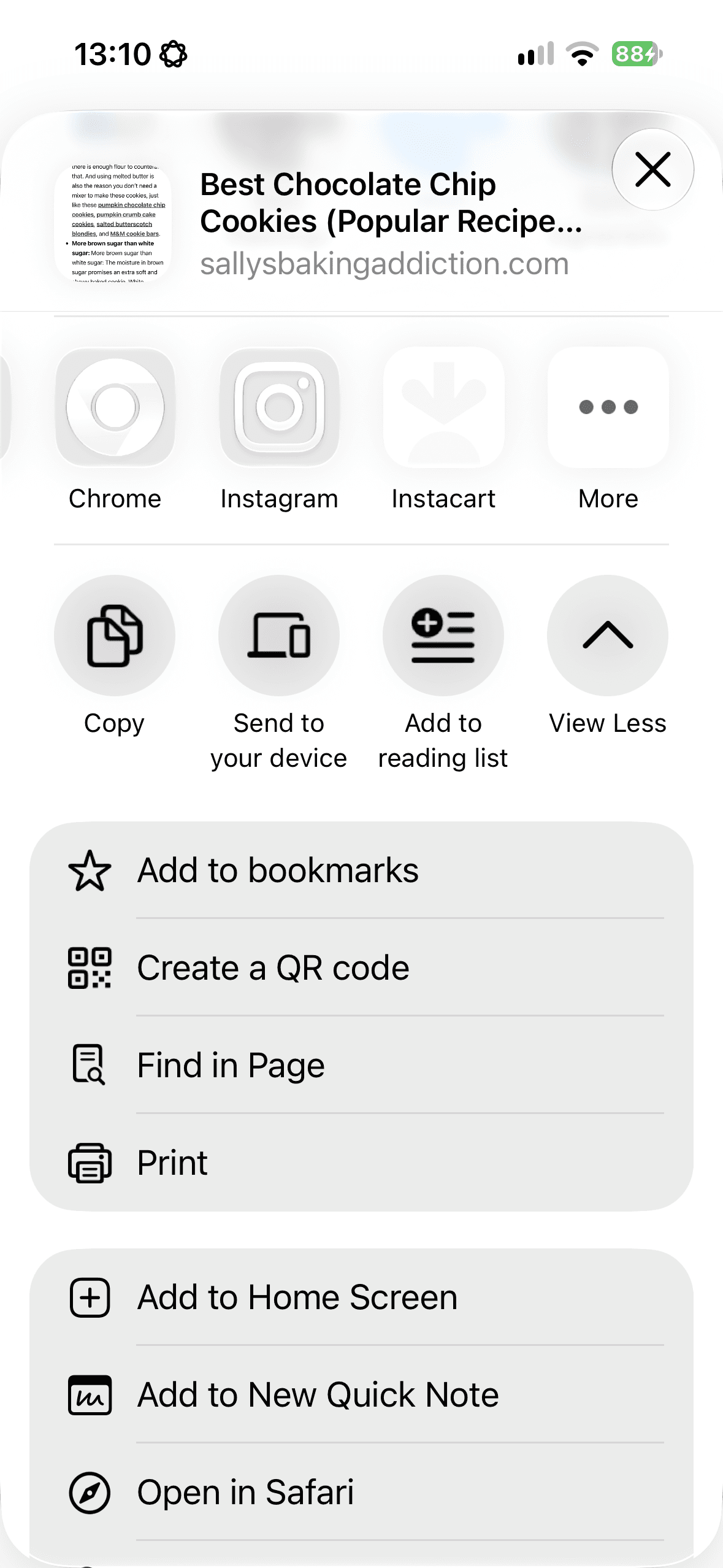
Step 3: Pin Pantry to Your Favourites
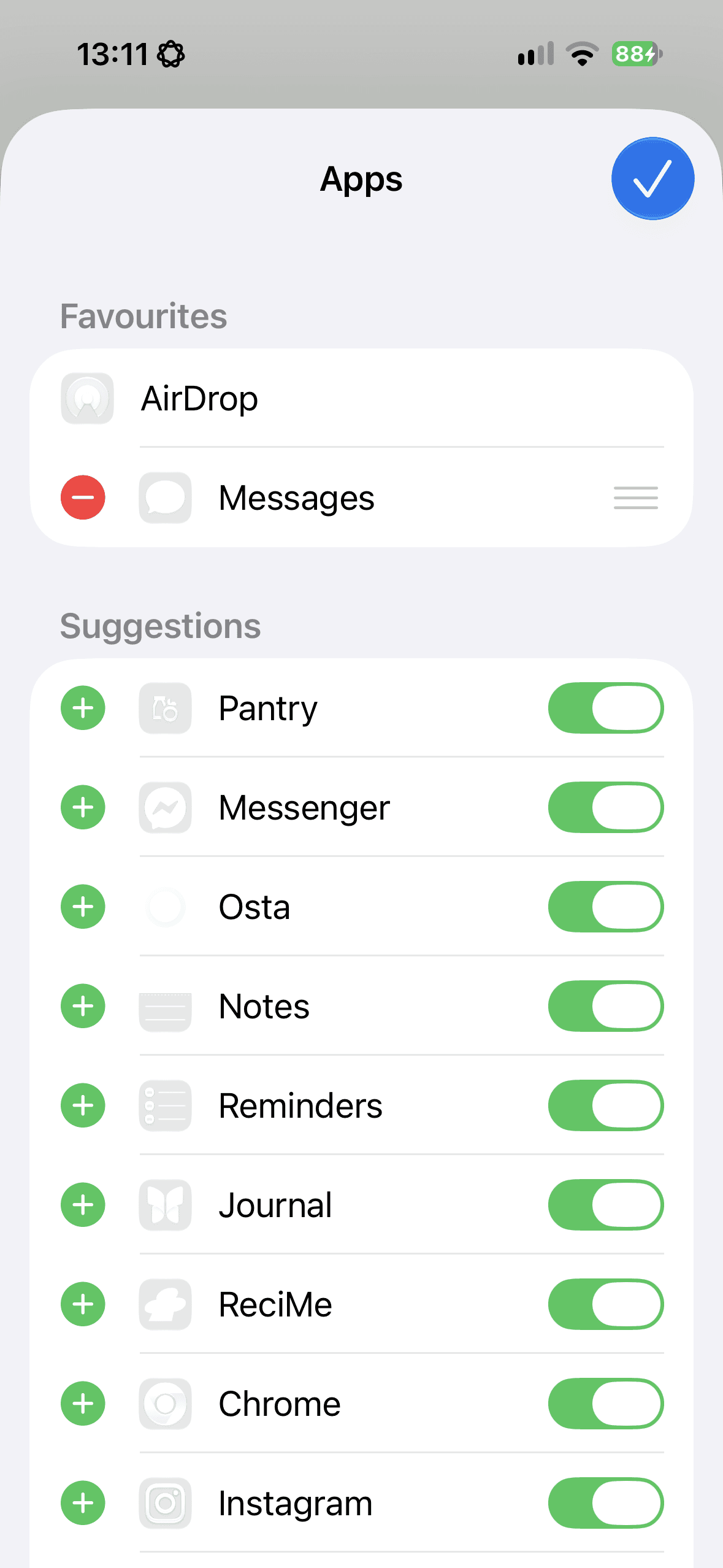
- 1Tap Edit in the top-right corner of the Apps screen.
- 2Under Suggestions, find Pantry and make sure its toggle is switched on.
- 3Tap the green `+` button next to Pantry to add it to your Favourites, then drag the three-line handle (
≡) to place it at the top of your list. - 4Tap the blue checkmark (Done) in the top-right corner to save.
Sharing Your Grocery List via Apple Reminders
Because Pantry syncs your grocery list with Apple Reminders, you can easily share a live, collaborative shopping list with family, housemates, or partners directly through iCloud:
- 1Link Your List in Pantry: Make sure your grocery list is synced with Apple Reminders in Pantry.
- 2Open Apple Reminders: Leave the Pantry app and open the native Reminders app on your iPhone.
- 3Select Your Grocery List: Open the shopping list that Pantry syncs with.
- 4Tap Share: Tap the Share button (the person icon or the square with an upward arrow at the top of the screen).
- 5Invite Collaborators: Choose how you want to send the invite (e.g., Messages) and select the people you want to share the list with.
Once they accept the invitation, any items added via Pantry, Siri ("Hey Siri, add to shopping list in Pantry"), or the Apple Reminders app will sync in real time across everyone's devices.